ESP32 Wi-Fi Web Server Tutorial: Control LEDs & Relays from Your Phone
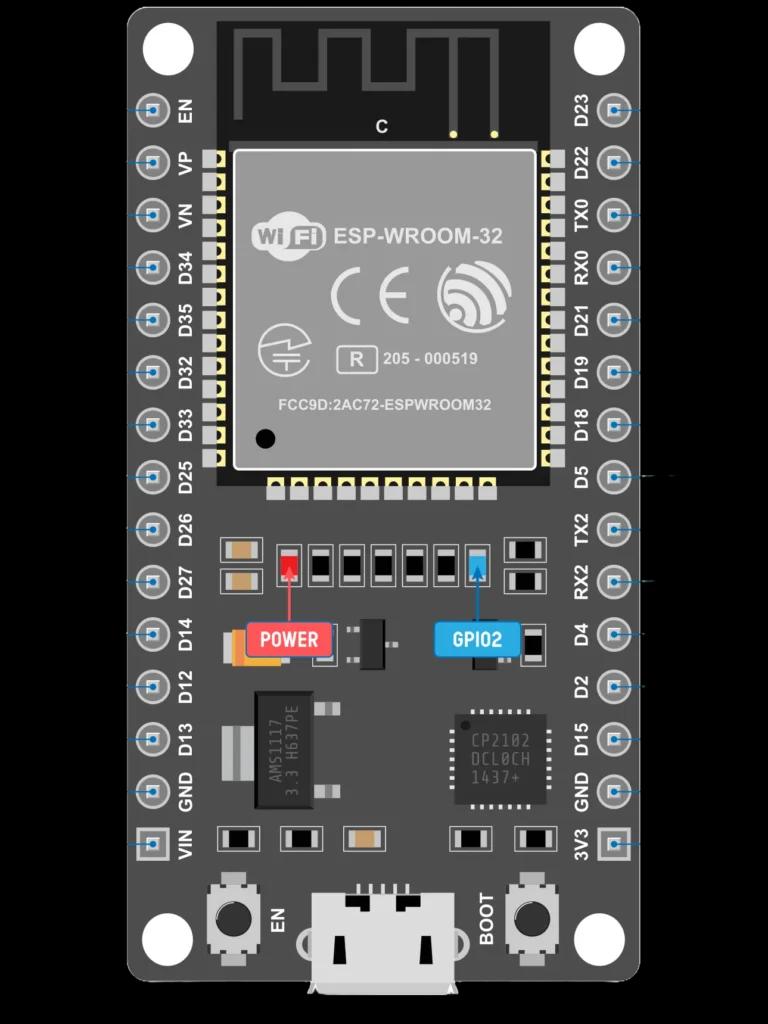
The ESP32 is a powerhouse microcontroller featuring dual-core 240MHz Tensilica processors, built-in 802.11 b/g/n Wi-Fi, and dual-mode Bluetooth. In this hands-on tutorial, we demonstrate how to configure your ESP32 as a local HTTP web server so you can toggle lights, cooling fans, or robotic arms straight from your mobile phone.
Why Choose ESP32 for IoT Projects?
Unlike traditional microcontrollers that require bulky external Wi-Fi shields (like the ESP8266 ESP-01), the ESP32 has onboard radio hardware and ample RAM (520 KB SRAM). This allows it to serve responsive HTML5 and CSS directly from flash memory with zero latency.
Required Hardware Components
- 1x ESP32 NodeMCU Development Board (30-pin or 38-pin)
- 2x 5mm LEDs (Red & Green)
- 2x 220Ω Current Limiting Resistors
- 1x 400-Point Solderless Breadboard
- Male-to-Male Jumper Wire Pack
- Micro-USB or Type-C Data Cable
All these components are available in our IoT & Microcontroller section at TheBotBakers with delivery across Dhaka and all 64 districts of Bangladesh.
Circuit Wiring Guide
- Place the ESP32 onto the center breadboard divider.
- Connect the cathode (short leg) of both LEDs to the common breadboard GND rail.
- Connect the ESP32 GND pin to the breadboard GND rail.
- Place a 220Ω resistor between GPIO 2 and the anode (long leg) of the first LED.
- Place a 220Ω resistor between GPIO 4 and the anode of the second LED.
Arduino IDE Configuration
- Open Arduino IDE and navigate to File > Preferences.
- Add the official Espressif package URL to Additional Boards Manager URLs.
- Go to Tools > Board > Boards Manager, search for esp32, and click Install.
- Under Tools > Board > ESP32 Arduino, select ESP32 Dev Module.
- Set the Upload Speed to 115200 or 921600 baud.
The Arduino C++ Code
In this project, we use the lightweight built-in WiFi.h and WebServer.h libraries:
#include <WiFi.h>
#include <WebServer.h>

const char* ssid = "YOUR_WIFI_NAME";
const char* password = "YOUR_WIFI_PASSWORD";

WebServer server(80);
const int ledPin1 = 2;
const int ledPin2 = 4;

void handleRoot() {
  String html = "<!DOCTYPE html><html><head><meta name='viewport' content='width=device-width, initial-scale=1'>";
  html += "<title>TheBotBakers ESP32 Web Server</title>";
  html += "<style>body{font-family:sans-serif;text-align:center;background:#FAF9F5;padding:20px;}";
  html += ".btn{padding:14px 28px;font-size:18px;border-radius:50px;border:none;margin:10px;cursor:pointer;}";
  html += ".btn-on{background:#11443F;color:white;} .btn-off{background:#EA7038;color:white;}</style></head>";
  html += "<body><h2>TheBotBakers IoT Controller</h2>";
  html += "<p><a href='/led1/on'><button class='btn btn-on'>LED 1 ON</button></a>";
  html += "<a href='/led1/off'><button class='btn btn-off'>LED 1 OFF</button></a></p>";
  html += "<p><a href='/led2/on'><button class='btn btn-on'>LED 2 ON</button></a>";
  html += "<a href='/led2/off'><button class='btn btn-off'>LED 2 OFF</button></a></p></body></html>";
  server.send(200, "text/html", html);
}

void setup() {
  Serial.begin(115200);
  pinMode(ledPin1, OUTPUT);
  pinMode(ledPin2, OUTPUT);

  WiFi.begin(ssid, password);
  while (WiFi.status() != WL_CONNECTED) {
    delay(500);
    Serial.print(".");
  }
  Serial.println("\nWi-Fi Connected!");
  Serial.print("Access URL: http://");
  Serial.println(WiFi.localIP());

  server.on("/", handleRoot);
  server.on("/led1/on", []() { digitalWrite(ledPin1, HIGH); server.sendHeader("Location", "/"); server.send(303); });
  server.on("/led1/off", []() { digitalWrite(ledPin1, LOW); server.sendHeader("Location", "/"); server.send(303); });
  server.on("/led2/on", []() { digitalWrite(ledPin2, HIGH); server.sendHeader("Location", "/"); server.send(303); });
  server.on("/led2/off", []() { digitalWrite(ledPin2, LOW); server.sendHeader("Location", "/"); server.send(303); });

  server.begin();
}

void loop() {
  server.handleClient();
}
Testing & Verification
- Upload the sketch and open the Serial Monitor at 115200 baud.
- Press the onboard EN / RST button on your ESP32.
- The board will display its local assigned IP address (e.g.,
192.168.0.105). - Connect your smartphone to the same Wi-Fi router, open Chrome or Safari, and enter
http://192.168.0.105. - Tap the interactive buttons to toggle your hardware loads wirelessly!
Ready to Build This Project?
Get all required genuine microcontrollers, sensors, and starter kits with fast delivery across Bangladesh (80 ৳ inside Dhaka, 120 ৳ nationwide).
More Tutorials & Articles
Keep exploring electronics, Arduino, and robotics guides.